A video of the game being played:
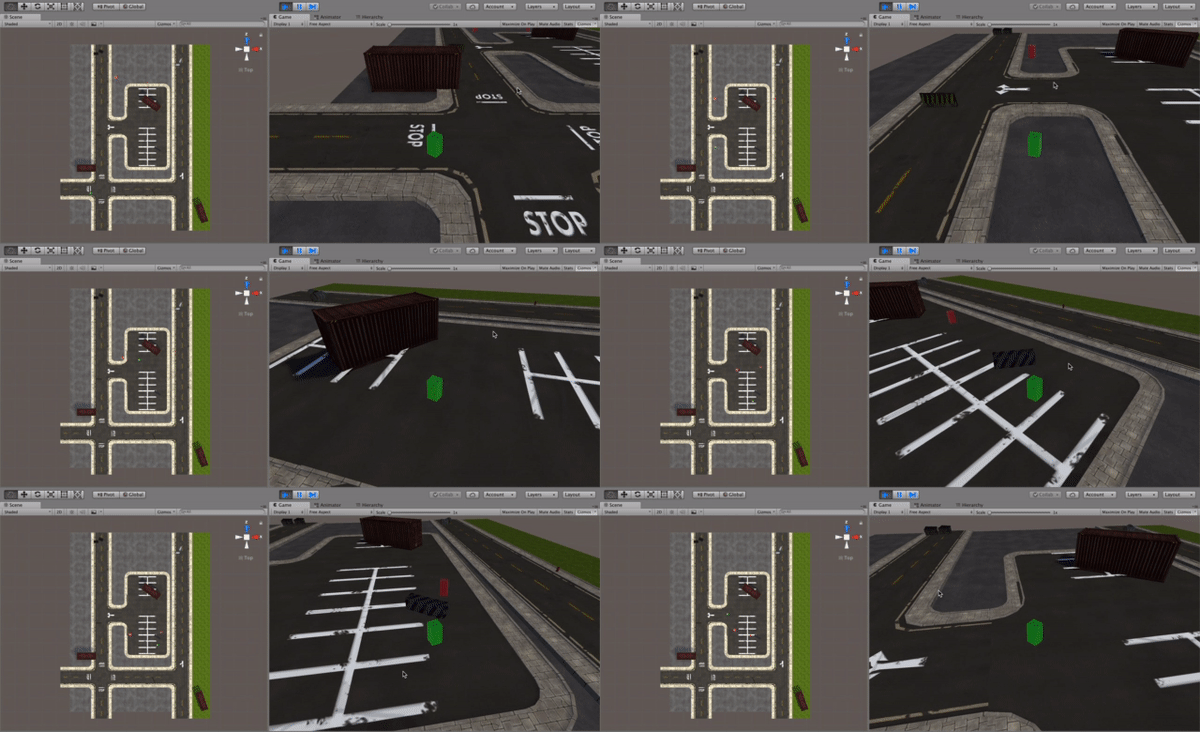
A video of the game being played:
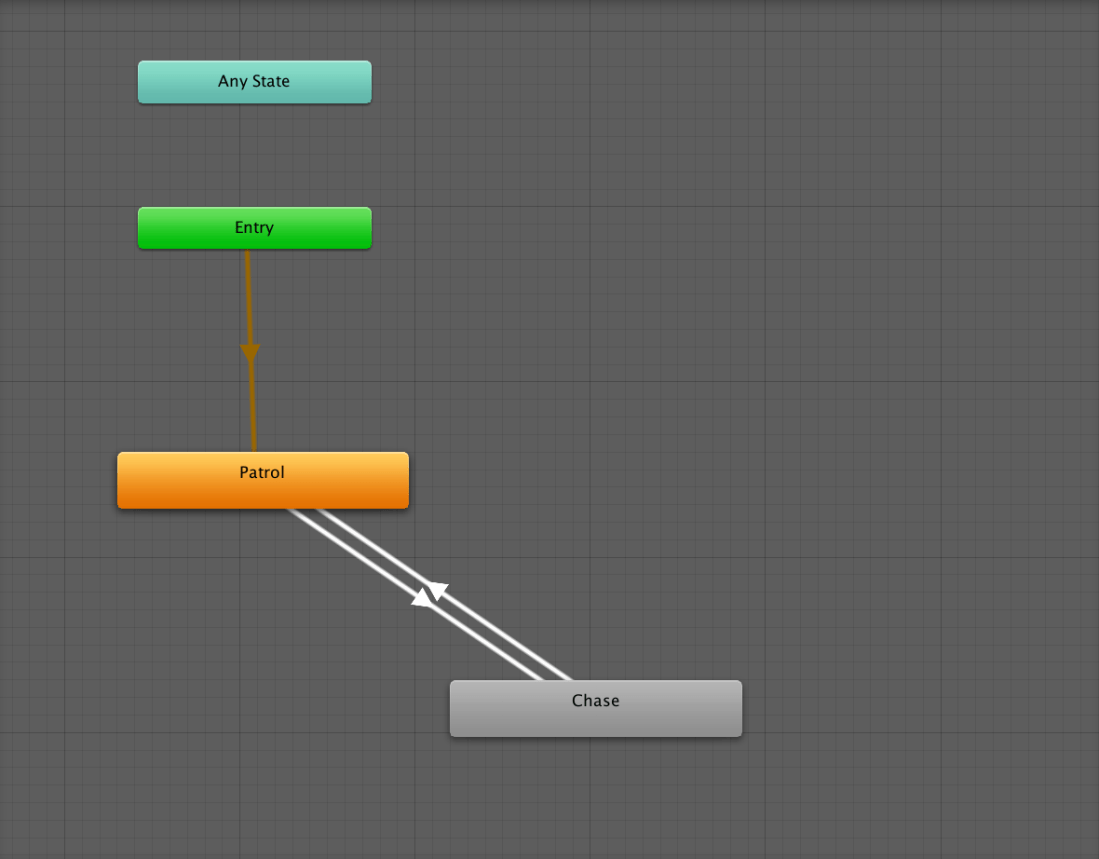
Finite State Machine for Large Enemy AI:
Video of FSM working during gameplay:
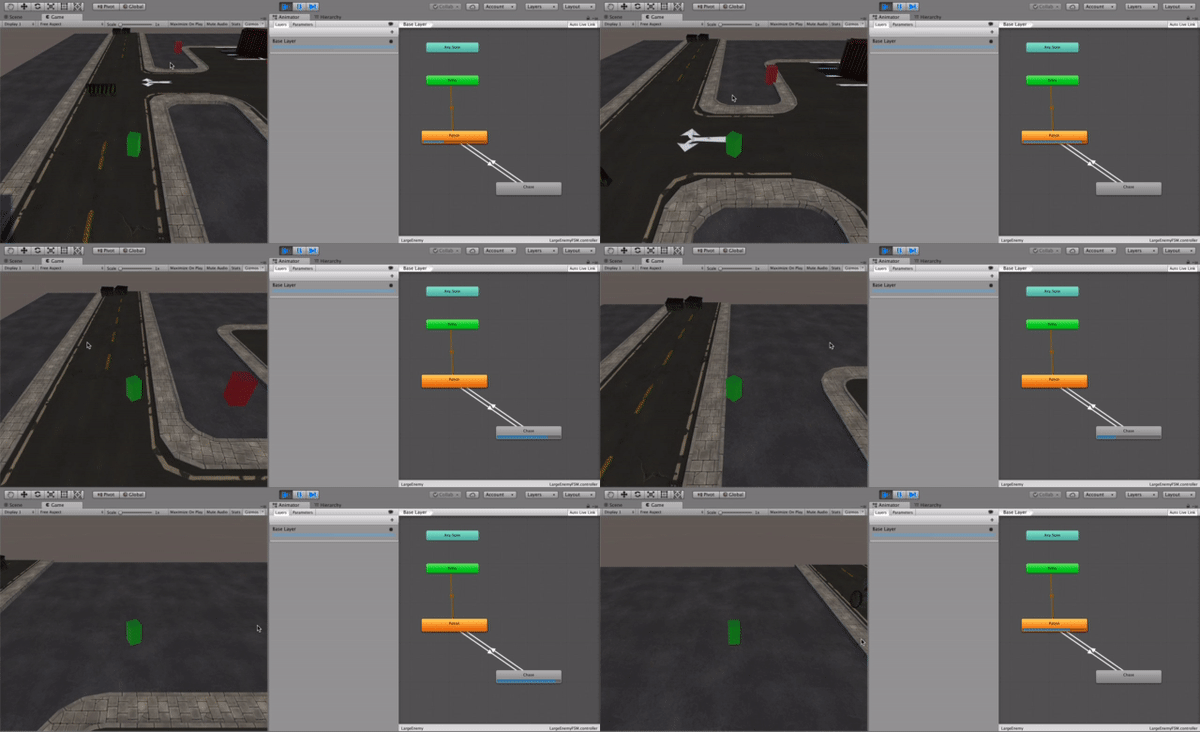
This video shows the FSM working while playing the game. While the enemy is wandering around the environment, the FSM is in the Patrol state. Once the Player gets within a certain radius of the enemy, the FSM switches from the Patrol state to the Chase state. When the Player is no longer within the radius of the Enemy, the FSM returns to the Patrol state.
This week I have started creating another enemy for my game. I wanted to add another larger enemy to make the game more interesting and more challenging for the Player.
I also want this enemy to wander the environment and pursue the player if they come within a certain radius. However for this enemy I will be implementing an AI algorithm – a Finite State Machine.
In order to understand and create the FSM, I watched several videos from the Unity Navigation Tutorials[1].
I have now created the Patrol and Chase scripts for the Finite State Machine:


This week I have further developed the enemy, by adding another steering behaviour -Purse.
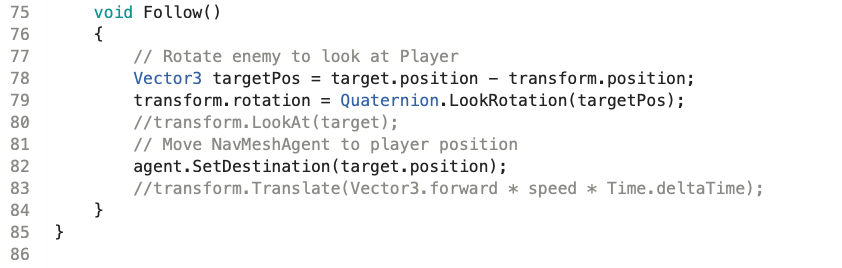
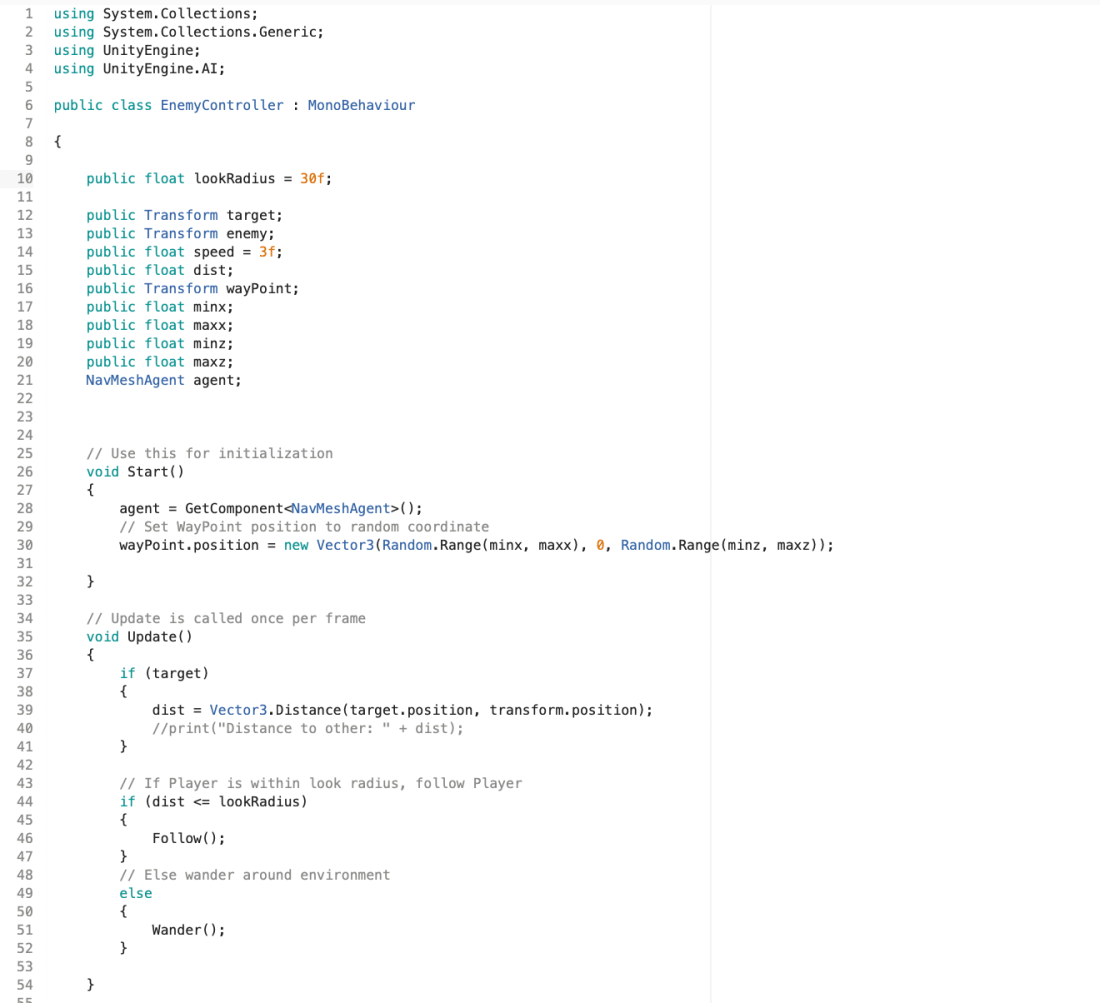
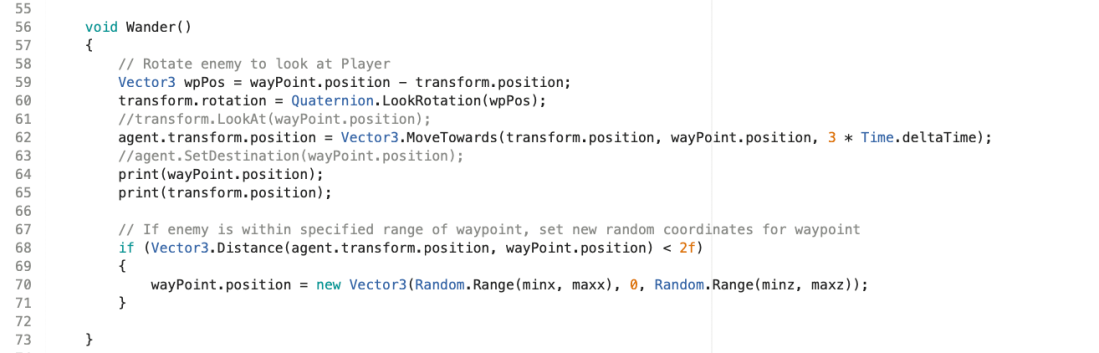
To the EnemyController script I have added the follow code which makes the enemy pursue the Player. When the Player is within a certain radius of the enemy, the enemy turns to look at the Player and then moves towards the player.
This week I have started to create the Enemy in my game. Once again, I have chosen to use a simple box shape for the graphics of my enemy so I can concentrate on the movement without adding in animations.
I have created a C# script called EnemyController to control the movement of the enemy.
When I first started to create the enemy, I placed several waypoints around the environment and had it wandering randomly between waypoints to give the illusion that it was wandering randomly around the environment. However, I have now developed the enemy script so that the enemy actually wanders randomly around the environment. I did this by creating a single waypoint and have it change position to a completely random position in the environment when the enemy gets within a certain distance of it.
EnemyController script:
This week I have created the Player. As I have never used Unity before, I watched some video tutorials to help me with creating the player. I watched the roll-a-ball tutorial[1] on the Unity website, and Brackeys Movement tutorial[2].
I wanted to have the player controlled using mouse clicks. So the user clicks the mouse button at a point in the environment that they want the player to move to, and the player then moves to this point. I have made my player a simple box shape as I felt that this would be simpler to begin creating the script for the movement of the player.
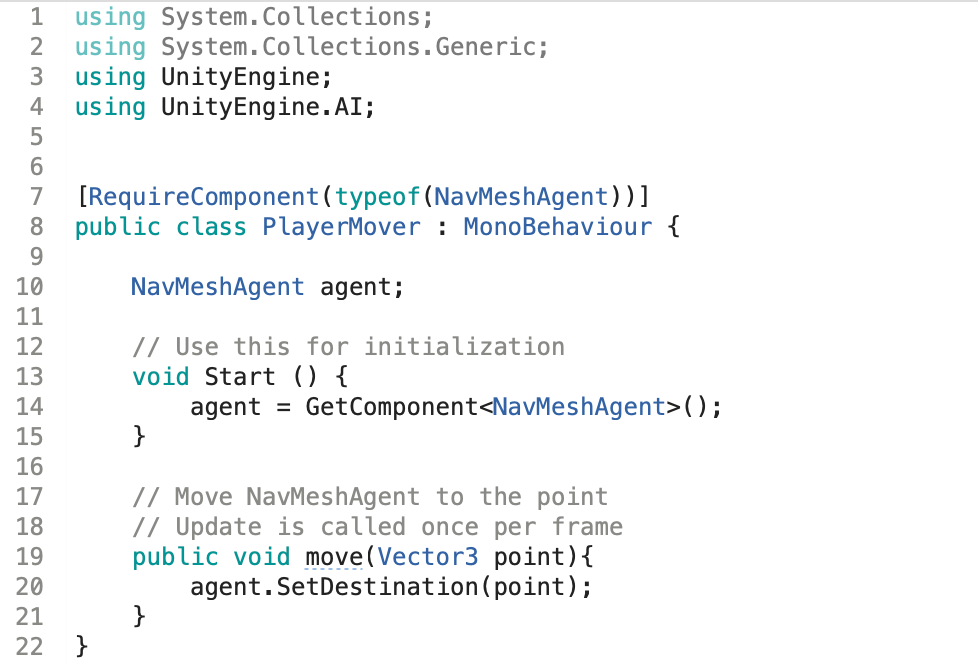
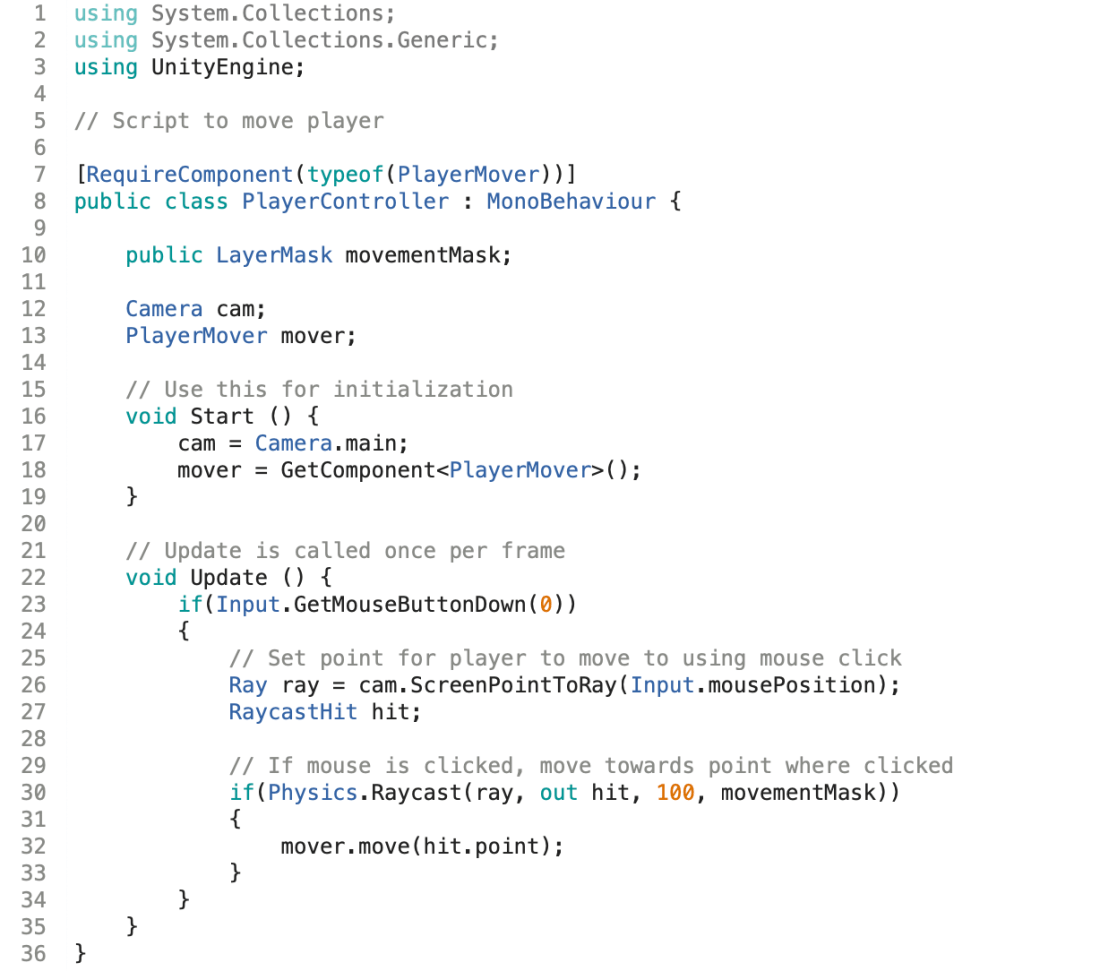
I created two C# scripts for my Player, a PlayerMover script and a PlayerController script. The player mover script creates the NavMeshAgent and moves the agent to the selected point. The Player controller script sets a raycast to set the point where the mouse is clicked.
PlayerMover script:
PlayerController script:
I have also created a C# script to control the camera:
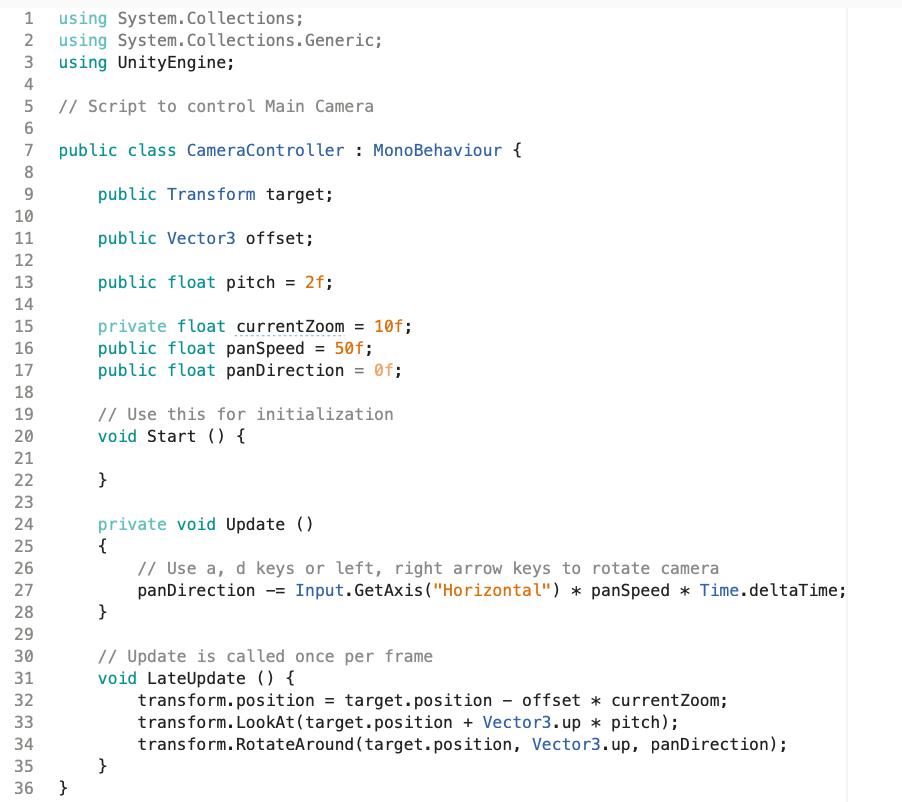
[1] https://unity3d.com/learn/tutorials/s/roll-ball-tutorial
[2] https://www.youtube.com/watch?v=Au8oX5pu5u4&list=PLPV2KyIb3jR5QFsefuO2RlAgWEz6EvVi6&index=4
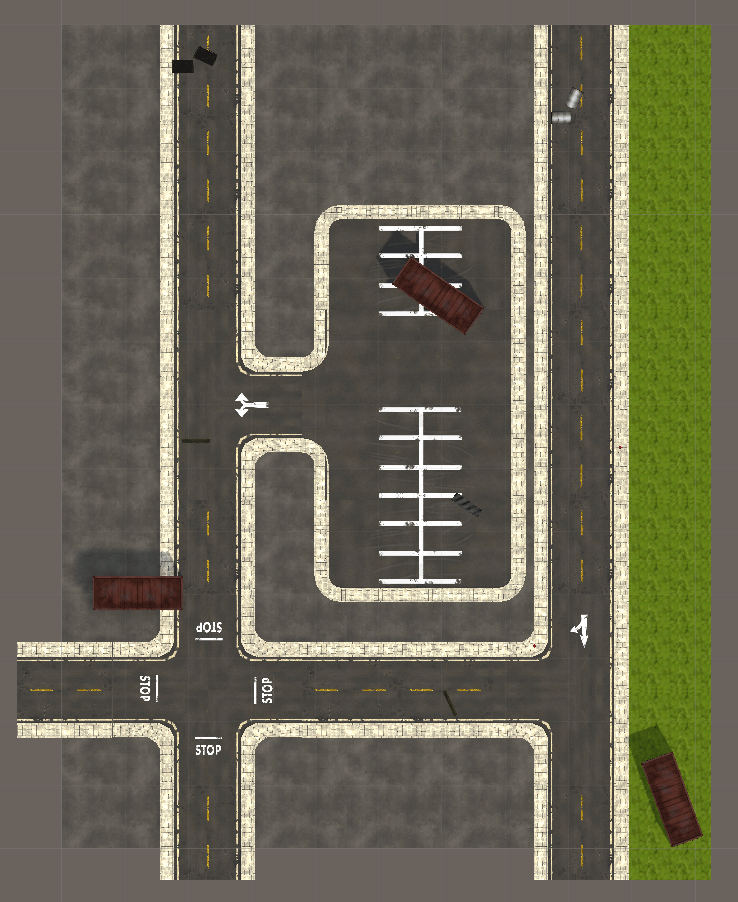
This week I started creating my game environment in Unity 3D. I want my game to have reasonably good graphics and look quite realistic, so I have decided to download free assets from the Unity Assets Store to create my game environment.
I have created quite a simple flat terrain, as I want to focus on having the player and enemy moving around different objects placed in the environment. The assets I have used for my environment are:
Roads & grass – https://assetstore.unity.com/packages/3d/environments/urban/low-poly-street-pack-67475
Containers – https://assetstore.unity.com/packages/3d/props/industrial/container-658
Dumpster – https://assetstore.unity.com/packages/3d/props/industrial/dumpster-655
RoadBlocks – https://assetstore.unity.com/packages/3d/props/exterior/road-blocker-663
Barrels – https://assetstore.unity.com/packages/3d/props/metal-barrel-3d-model-29348
This is how the environment now looks in Unity:
This week I have started planning and designing my game. I have chosen to use Unity 3d to develop my game as I do not have any experience in creating games and Unity has lots of tutorials and support which will help me to get started. I will be using C# to create my game.
I have decided that I want my game to be a zombie style game. I feel that this design would be good for this assignment as I can implement the steering behaviours wander and pursue for the zombie enemy.
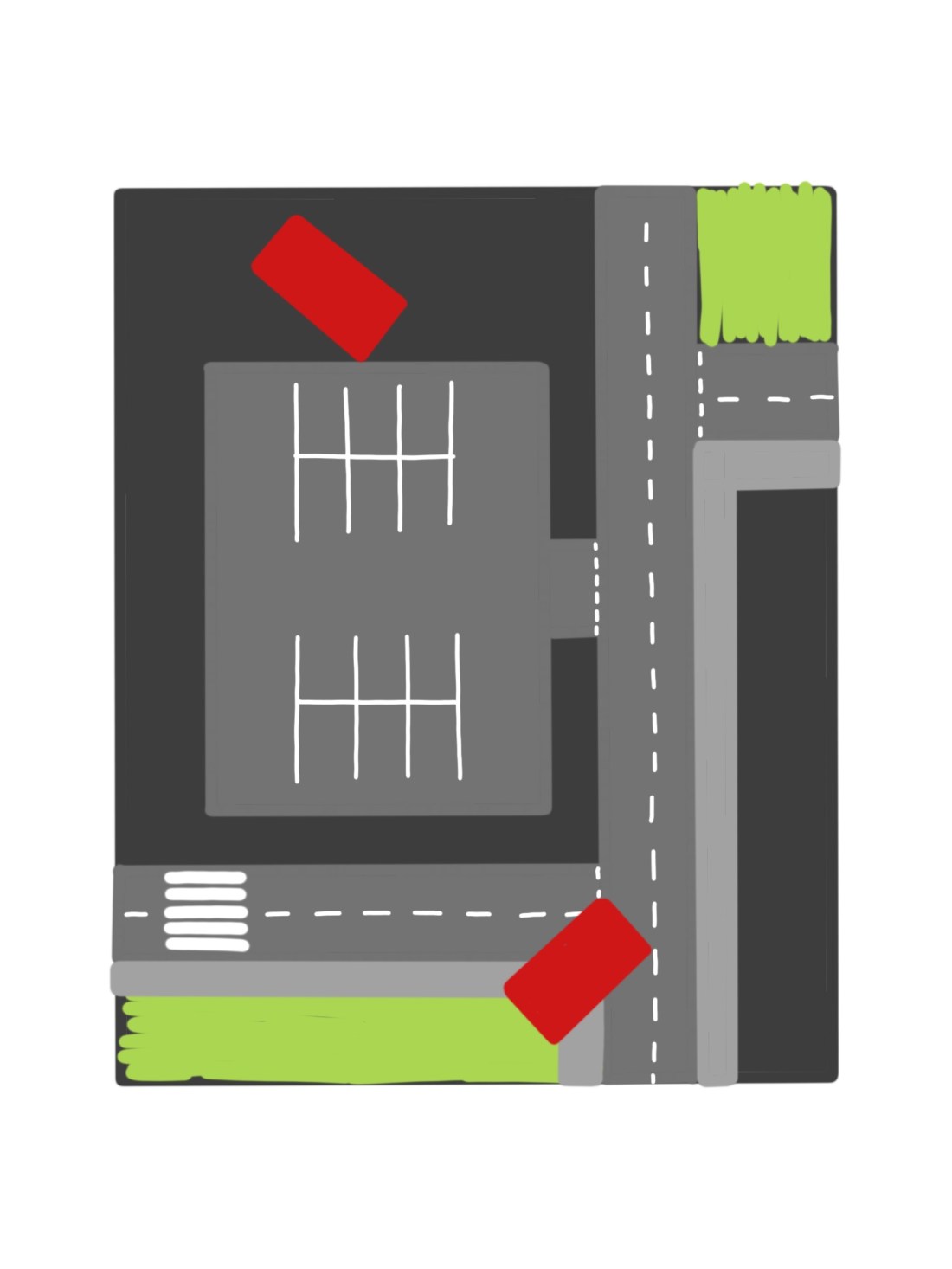
I have also started sketching some designs for the environment for my game. Because I want to create a zombie style game I want to have the environment be an abandoned car park and roads to match the theme of the game.
These is a sketch of my idea for the environment:
The purpose of this blog is to document the development of my game for the ICP-2025 module.
 Casey's AI for Games Blog